Showing posts with label into. Show all posts
Showing posts with label into. Show all posts
Sunday, January 29, 2017
Convert MP3 Wav and Other Media Files into AAC or M4A Formats Using iTunes
Convert MP3 Wav and Other Media Files into AAC or M4A Formats Using iTunes
Convert MP3, Wav and Other Media Files into AAC or M4A Formats Using iTunes
1. First download iTunes if you dont have it:
2. Now install it and run the program. Well need to change a few options.
3. Click on "Edit -> Preferences".
4. Now go to "Advanced" tab and click on "Importing" tab.
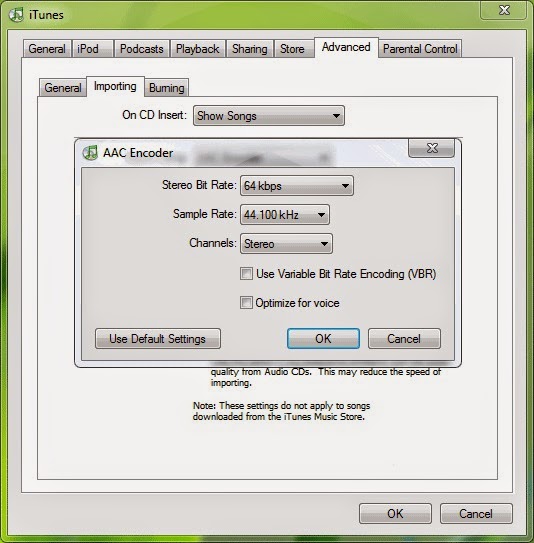
5. Select "AAC Encoder" from "Import Using" list and select "Custom" from "Setting" list. As soon as you select "Custom" option, itll show a new dialog box.
6. Select "64 kbps" as "Stereo Bit Rate", "44.100 kHz" as "Sample Rate" and "Stereo" as "Channels". These are standard values which I found best for a quality media file. You can change them according to your requirements.
.jpg)
7. Now click on OK and and again OK to exit the Preferences box.
8. Now we have customized all settings to convert files into AAC format. Now open any media file by pressing "Ctrl+O" or by selecting "File -> Add File to Library" option.
9. Itll add the file in Library window. Now right-click on the file and select "Convert Selection to AAC" option.
10. Thats it. Now sit back and wait for a few seconds. iTunes will convert the file into .M4A file which you can upload to your cell phone.
11. You can mass convert files into AAC. Open multiple files and select all of them and follow Step 9.
12. If you are wondering where is your converted file has been stored? Then go to "Edit -> Preferences" and click on "Advanced" tab.
It shows the folder location where iTunes will store the music files. You can change it using "Change" button.
-------------------------------------------------------------------------------------------------------------------
1. First download iTunes if you dont have it:
2. Now install it and run the program. Well need to change a few options.
3. Click on "Edit -> Preferences".
4. Now go to "Advanced" tab and click on "Importing" tab.
5. Select "AAC Encoder" from "Import Using" list and select "Custom" from "Setting" list. As soon as you select "Custom" option, itll show a new dialog box.
6. Select "64 kbps" as "Stereo Bit Rate", "44.100 kHz" as "Sample Rate" and "Stereo" as "Channels". These are standard values which I found best for a quality media file. You can change them according to your requirements.
7. Now click on OK and and again OK to exit the Preferences box.
8. Now we have customized all settings to convert files into AAC format. Now open any media file by pressing "Ctrl+O" or by selecting "File -> Add File to Library" option.
9. Itll add the file in Library window. Now right-click on the file and select "Convert Selection to AAC" option.
10. Thats it. Now sit back and wait for a few seconds. iTunes will convert the file into .M4A file which you can upload to your cell phone.
11. You can mass convert files into AAC. Open multiple files and select all of them and follow Step 9.
12. If you are wondering where is your converted file has been stored? Then go to "Edit -> Preferences" and click on "Advanced" tab.
It shows the folder location where iTunes will store the music files. You can change it using "Change" button.
-------------------------------------------------------------------------------------------------------------------
Not happy with your TV performance? Call at 0800 016 3909 (Freephone) to seek suggestions of TV calibration experts from Techvedic. We are not restrained by product make or model. And neither with the warranty period. Hence, feel free to get in touch with us to derive the best experience from your technology product.
About Techvedic: http://en.wikipedia.org/wiki/Techvedic
Get in touch with Techvedic on Social Media:
Techvedic Facebook Page: https://www.facebook.com/techvedic
Techvedic Twitter: https://twitter.com/techvedic
Techvedic Google Plus Page: https://plus.google.com/+TechvedicInc/posts
Techvedic YouTube:https://www.youtube.com/user/Techvedic
Techvedic LinkedIn Profile:https://www.linkedin.com/company/techvedic
Visit: Techvedic - Computer Tech Support Company | http://www.techvedic.co.uk/ | 0800 016 3909 (UK) | support@techvedic.com
Available link for download

Friday, November 4, 2016
Dona Sarkar give insights into Her favorite Windows 10 feature Microsoft experience more
Dona Sarkar give insights into Her favorite Windows 10 feature Microsoft experience more


Dona Sarkar give insights into Her favorite Windows 10 feature, Microsoft experience & more Microsoft usually provide insights into someone important to the development of Windows 10. Known as Windows 10 Team Profiles, past subjects have included Windows & Devices Group Program Manager Anthony Kinsey and Senior Program Manager of Awesomeness (seriously) Brandon LeBlanc. The …
Source: WindowsPhoneHub - Free Windows Phone & Windows 10 Mobile Apps & Games
Read Full post here Dona Sarkar give insights into Her favorite Windows 10 feature, Microsoft experience & more or Visit WindowsPhoneHub - Free Windows Phone & Windows 10 Mobile Apps & Games.


Available link for download
Subscribe to:
Posts (Atom)